session_settings
Choose which GNOME controls to keep, how launchers affect window focus, and whether tools can use particular Wayland interfaces. Add the examples to ~/.config/gnoblin/init.lua.
Native features
Enable GNOME's notifications if your shell does not provide a notification daemon. Run only one notification service. This example enables GNOME's notifications and leaves its keyboard-layout and window-switching popups off:
gnoblin.configure {
    shell = {
        notifications = true,
        input_source_switcher = false,
        window_switcher = false,
    },
}| Option | Default | Enables |
|---|---|---|
notifications | Initially off | GNOME's notification service |
input_source_switcher | Initially off | Native keyboard-layout popup |
window_switcher | Off | GNOME's app/window/group switchers |
With Mako, set shell.notifications to false so Gnoblin does not also own the notification service:
gnoblin.configure {shell = {notifications = false}}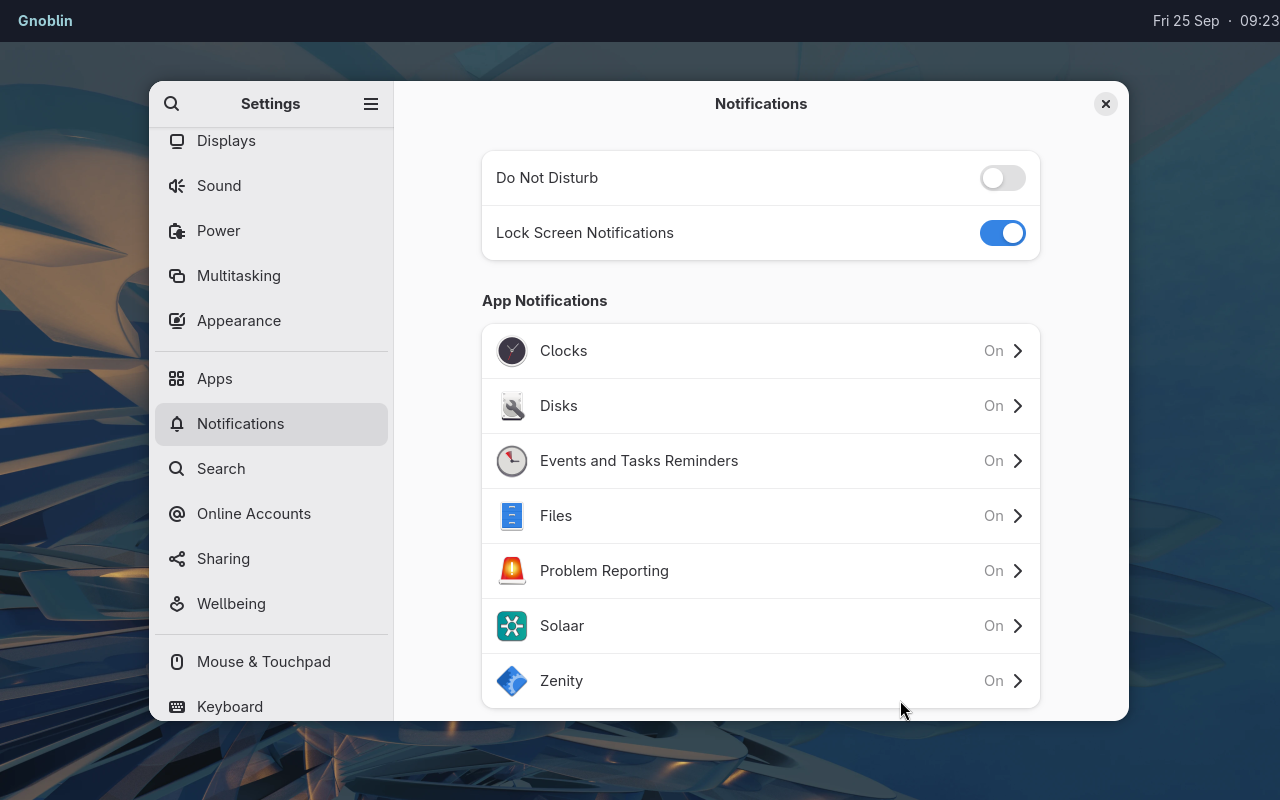
GNOME Settings shows per-app notification controls in this Waybar session.
With Mako running, notifications appear in its own layer-shell surface. Keep GNOME's notification service off so only Mako handles them.
Notifications and the layout-popup setting are saved in GNOME's settings database (GSettings). To turn them off again, set them to false; deleting the Lua lines leaves the saved values in place.
Removing window_switcher returns it to false. If your shell needs the same switching keys, also release or rebind the built-in shortcuts.
Disabling the layout popup does not disable keyboard layouts. Volume/brightness popups and screenshot controls come from your desktop shell; these options do not enable GNOME's versions.
Layer-shell keyboard focus
gnoblin.configure {
    layer_shell = {
        preserve_active_window = true,
    },
}
Default: true. Requires logout and login.
When a launcher requests exclusive keyboard focus, typing goes to the launcher. With this setting enabled, the application underneath keeps its active appearance: its titlebar and effects do not switch to their unfocused style.
The launcher still receives all typing.
Set false to let exclusive layers deactivate the application beneath them. On-demand focus, passive bars and normal application menus are unchanged.
Window drag boundary
gnoblin.configure {
    window_management = {
        constrain_drag_to_work_area = true,
    },
}
Default: true. Applies at the next drag after reload.
This keeps the dragged frame below the monitor's reserved top area, including space reserved by a layer-shell panel. Set false to allow overlap.
Protocol settings
Wayland protocols let desktop tools request features such as screen capture, clipboard access and display power control. The interfaces below are enabled by default. Most users can leave them alone.
For example, this disables the wlr_screencopy screen-capture interface:
gnoblin.configure {
    protocols = {
        wlr_screencopy = false,
    },
}
Log out and back in to apply protocol changes. Gnoblin exposes these interfaces when the session starts and cannot remove them during config reload.
| Name | Used for |
|---|---|
wlr_layer_shell | Bars, docks and launchers |
wlr_screencopy | Screen capture |
ext_foreign_toplevel_list | Window enumeration |
wlr_foreign_toplevel_management | Window controls and dock targets |
ext_data_control | Clipboard managers |
ext_idle_notify | Idle detection |
wlr_gamma_control | Gamma and colour temperature |
wlr_output_power_management | Display power |
ext_background_effect_v1 | Client-requested background blur |
xdg_decoration | Client/server titlebar negotiation |
window_frame_renderer | External frame renderer service |
blur_fade | Per-item blur fade metadata |
This does not block all screen sharing: apps using the desktop portal follow portal permissions instead. Disabling protocols your shell uses can prevent its features from working. See the protocol catalog for the advertised interface names, related guides and interfaces that are not yet supported.