Try Gnoblin in a window
The devkit runs a nested Gnoblin session inside your Wayland desktop. Use it to test a build without logging out.
First complete the source build.
Start
From the checkout:
GNOBLIN_PREFIX="$PWD/install" just previewA desktop viewer and terminal open. Programs started from that terminal connect to the nested compositor.
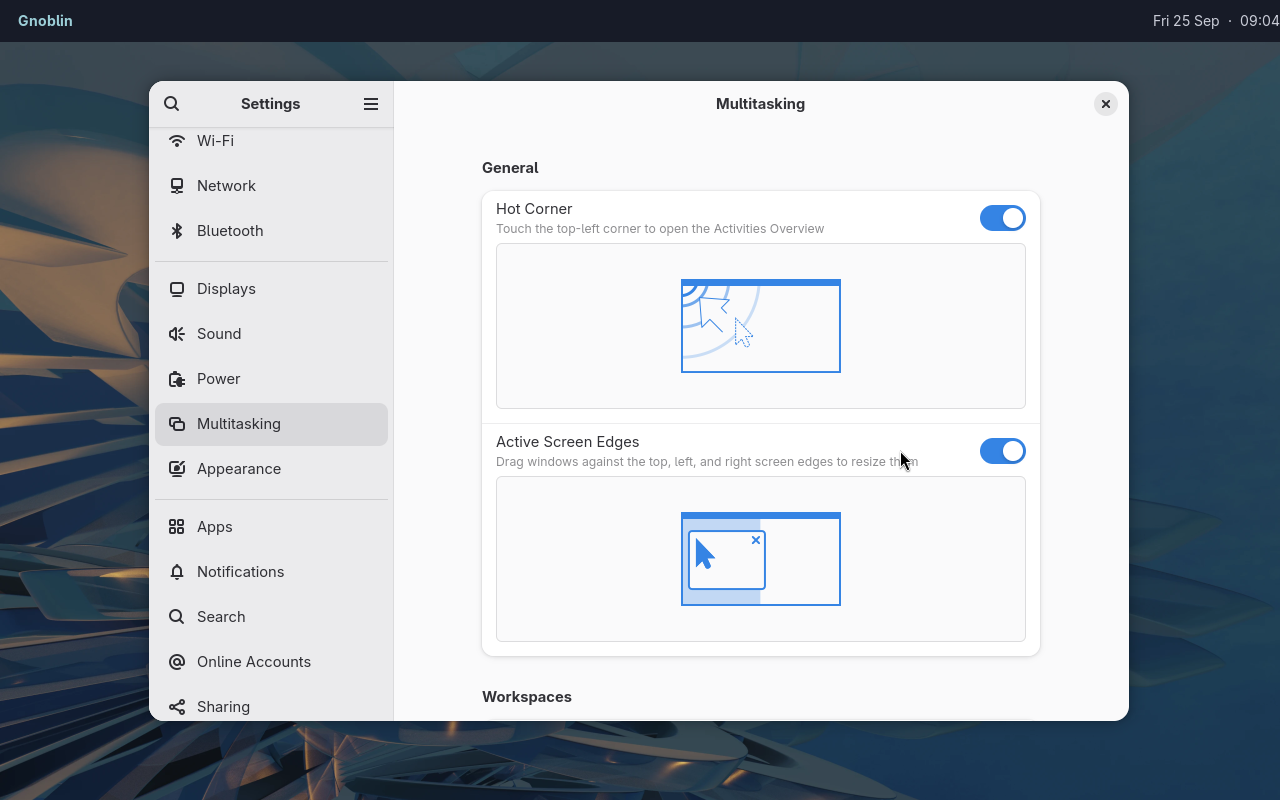
The nested session can run a separate bar and stock desktop applications.
To choose a terminal explicitly:
GNOBLIN_PREFIX="$PWD/install" just preview kittyTry your shell
From the devkit terminal, launch an installed layer-shell client:
waybarThe bar should appear inside the viewer. Try its menus and launcher. Close the terminal to stop the devkit.
Options
| Variable | Accepted values | Default | Purpose |
|---|---|---|---|
MONITOR | WIDTHxHEIGHT in pixels | 1600x900 | Sets the nested display size. |
GNOME_DEVKIT_HEADLESS | 0 or 1 | 0 | 1 starts without a viewer; 0 requires a host Wayland display. |
GNOME_DEVKIT_EXEC | Shell command string | Unset | Runs the string with bash -c instead of opening a terminal. |
GNOME_DEVKIT_UNSAFE_MODE | 0 or 1 | 0 | 1 enables privileged shell D-Bus APIs for tests. |
Headless / scripting mode
GNOME_DEVKIT_HEADLESS=1 \
GNOME_DEVKIT_EXEC='gnoblinctl feature list --json' \
GNOBLIN_PREFIX="$PWD/install" just preview
This runs without a host Wayland display and exits after the command. just test-preview checks this environment.
Isolation
The nested display and D-Bus bus are separate. Host X11, accessibility and gvfs connections are not passed through.
Your HOME and runtime directory remain real. Applications can still read or change your files and configuration. This is not a security sandbox.
For a fresh profile, including screenshots and demos, run:
bash scripts/run-clean-devkit.shThis creates disposable home, config, data, cache, state and runtime directories and removes them when the devkit closes. The viewer still connects to your host Wayland session and may use its PipeWire socket. Use a VM when the guest must be fully separate from host services. Check the image before publishing it.
Documentation captures
The checked-in documentation scenes can be recaptured with:
scripts/capture-doc-examples.sh site-firefox
scripts/capture-doc-examples.sh waybar-firefox
scripts/capture-doc-examples.sh waybar-launcher
scripts/capture-doc-examples.sh waybar-settings
scripts/capture-doc-examples.sh waybar-quickshell-dock
scripts/capture-doc-examples.sh quickshell-firefox
scripts/capture-doc-examples.sh quickshell-files
scripts/capture-doc-examples.sh window-effects
GNOBLIN_DOC_BINGUX_PATH=../bingux/shell/bingux scripts/capture-doc-examples.sh bingux-firefox
GNOBLIN_DOC_BINGUX_PATH=../bingux/shell/bingux scripts/capture-doc-examples.sh bingux-files
Each scene gets a disposable home and XDG profile. Firefox has its own clean profile; site-firefox opens the configuration reference. Other Firefox scenes open www.gnoblin.org by default. Choose Bingux, Waybar with Mako or Quickshell for the visible shell. Captures include the pointer and omit terminal windows.
Set GNOBLIN_DOC_SITE_URL or GNOBLIN_DOC_FIREFOX_URL to choose another page. Pass a second argument for a different output directory. Captures need a visible Wayland session, a current build in ./install and the apps used by the scene. See the shell guide for the resulting setups.
The private test harness is for automated checks. A devkit capture shows the nested session, not an installed login session.
Troubleshooting
| Problem | Next step |
|---|---|
No host WAYLAND_DISPLAY | Use a Wayland desktop or headless mode |
No Shell in ./install | Finish the source build |
| No terminal found | Install one or pass its command explicitly |
| Quickshell/Qt mismatch | Install or rebuild a matching Quickshell |
EBUSY taking the session | Use this devkit launcher, not a direct native/KMS launch |