Build a floating desktop
Gnoblin supplies the compositor, window management and interfaces that desktop components can use. A shell supplies the visible controls. The shell can be one program or a collection of smaller clients; it is independent of Gnoblin. Bingux is one separate project built on these interfaces.
| Piece | Gnoblin provides | Your desktop chooses |
|---|---|---|
| Windows | Focus, move, resize, workspaces, rules and decorations | Dock grouping, switcher order and menus |
| Input | Keybindings and input-source control | Launcher, search and popup design |
| Surfaces | Layer-shell placement, exclusive zones and effects | Bar, dock, wallpaper and overlays |
| Desktop services | Portals, permission policy and optional native features | Notification daemon and other visible controls |
Bingux is one separate shell example; Gnoblin provides the compositor and window management.
The configuration reference describes the Lua settings. The CLI is convenient for commands; the compositor bridge supplies subscriptions and shortcuts to a long-running shell. Wayland protocols serve native clients, and user scripts react inside GNOME Shell.
Assemble a small desktop
Install a bar, launcher, notification daemon and terminal. This example uses Waybar, Fuzzel, Mako and Foot. They are independent applications; replace any of them with a component you prefer. Put this in a new~/.config/gnoblin/init.lua:
gnoblin.configure {
    cursor = {theme = "Adwaita-Hyprcursor", size = 28},
    autostart = {
        bar = {command = {"waybar"}},
        notifications = {command = {"mako"}},
    },
    shortcuts = {
        launcher = {binding = "<Super>d", command = {"fuzzel"}},
        terminal = {binding = "<Super>Return", command = {"foot"}},
    },
}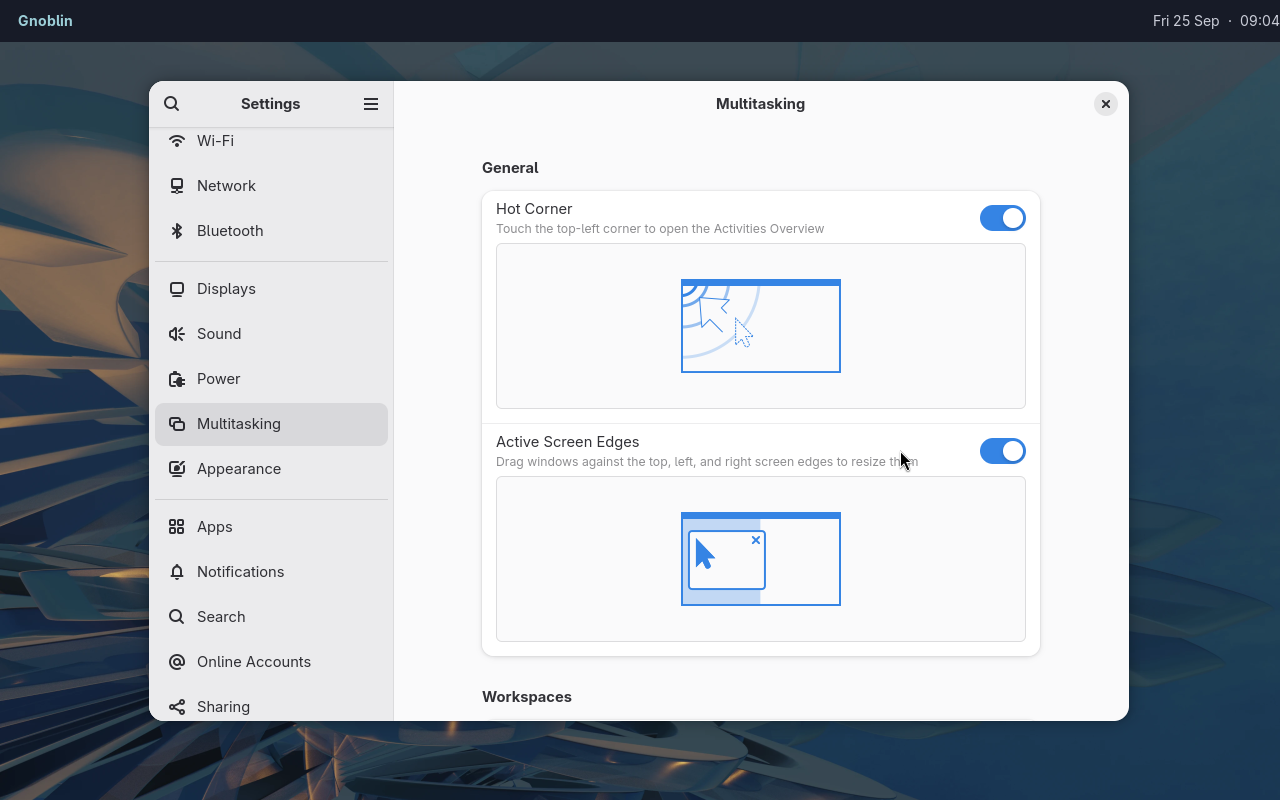
A stock GNOME app beneath Waybar.
Gnoblin bundles the Adwaita Hyprcursor theme. See the cursor guide to select it or use another installed theme.
Capture this example from the checkout with scripts/capture-doc-examples.sh waybar-settings. It uses a disposable config and profile; see the capture script for setup.
If your existing init.lua loads files installed by a shell, keep those gnoblin.load(...) lines and put your additions after them. Use an imported shortcut's existing name when changing its command. Load order and merging explain why the order matters.
Log in to Gnoblin, then run gnoblinctl config path to confirm the active file. Run gnoblinctl config reload to apply edits; Gnoblin reports any configuration errors. See the autostart guide for launch timing and named entries.
Waybar's Sway and Hyprland modules expect those compositors' own IPC and do not gain that IPC merely by running under Gnoblin. Configure supported generic modules or write a module using window data.
Give each visible function an owner
Only one notification daemon should own notifications. If your shell handles them, leave shell.notifications disabled; if it does not, you can enable Gnoblin's native service. The same choice applies to a window switcher and keyboard-layout popup. See native features and shortcut conflicts.
A dock can use the foreign toplevel protocols for basic window handles or the bridge for records, previews, activation and shortcut sessions. Keep window IDs only for the lifetime of their windows. Refresh snapshots after windows close or workspaces change. Bridge examples show clients in several languages.
Choose the right interface
| Task | Interface |
|---|---|
| Change a window from a script | gnoblinctl window ... |
| Maintain a live switcher or dock | Compositor bridge windows subscription |
| Place a bar or dock | zwlr_layer_shell_v1 |
| Capture output with a native client | zwlr_screencopy_manager_v1, subject to its protocol gate |
| Apply per-app styling | gnoblin.window_rule in Lua |
| React to a workspace change inside Shell | GJS user script api.on("workspace-changed", ...) |
| Supply an application titlebar | Frame rule and optional renderer service |
The desktop portal has its own permission policy. Disabling a Wayland protocol does not replace portal permissions for screen sharing or remote control.
Work on the desktop in a nested session
The devkit starts Gnoblin in a window. Use it to try a bar or rule before logging out.
For screenshots and demos, give it fresh home and XDG config, data, cache, state, and runtime directories. Launch only the applications that belong in the example. A normal devkit invocation keeps your real home directory; see the isolation notes.
For packaging or a final session check, use a real Gnoblin login. A devkit image proves what appeared in that nested run, not what is installed in a login session.
Continue from here
- Window rules, effects and frames
- Shell integration, window menus and snapping
- Protocol catalog and compositor bridge
- Troubleshooting when a component does not appear