Choose a shell
Choose a complete shell or combine a bar, launcher and notification daemon. Bingux is a separate project and one example of a shell built on Gnoblin. It is optional.
| Setup | What you get |
|---|---|
| Waybar + Fuzzel + Mako | Separate tools you configure independently |
| Quickshell | A custom layer-shell surface |
| Bingux | An integrated bar, dock, launcher and notifications |
| Your own layer-shell clients | A custom desktop using Gnoblin's Wayland protocols |
Waybar, Fuzzel and Mako
Install Waybar, Fuzzel and Mako with your distribution's package manager.
Add this to ~/.config/gnoblin/init.lua:
gnoblin.configure {
    autostart = {
        bar = {command = {"waybar"}},
        notifications = {command = {"mako"}},
    },
    shortcuts = {
        launcher = {binding = "<Super>d", command = {"fuzzel"}},
    },
}
Configure Waybar's clock, tray and system modules as usual. Its Sway and Hyprland modules need those compositors' own interfaces and do not work in Gnoblin. Run one notification daemon; leave Gnoblin's native notifications disabled when using Mako.
Configure each tool in its own files. Gnoblin's autostart and shortcuts only control how you launch it.
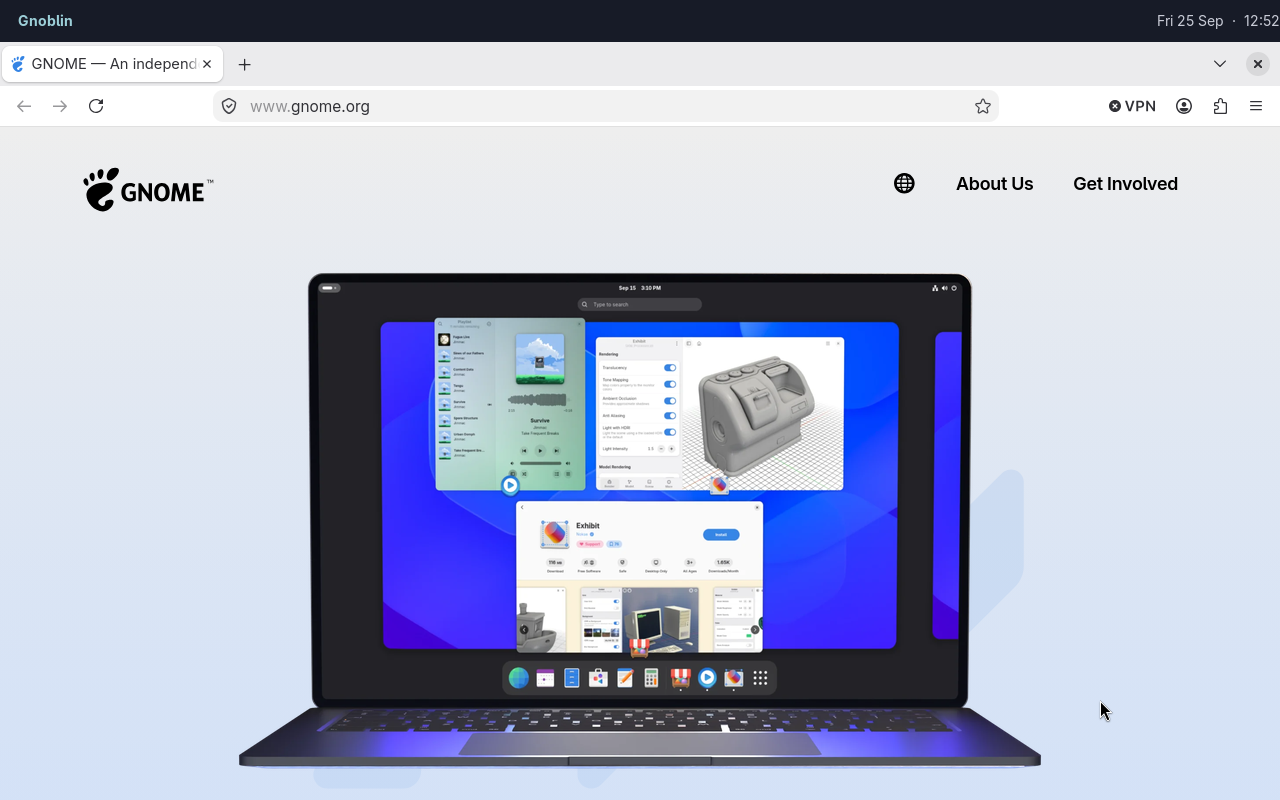
Firefox is an ordinary client window; Waybar is a separate desktop client.
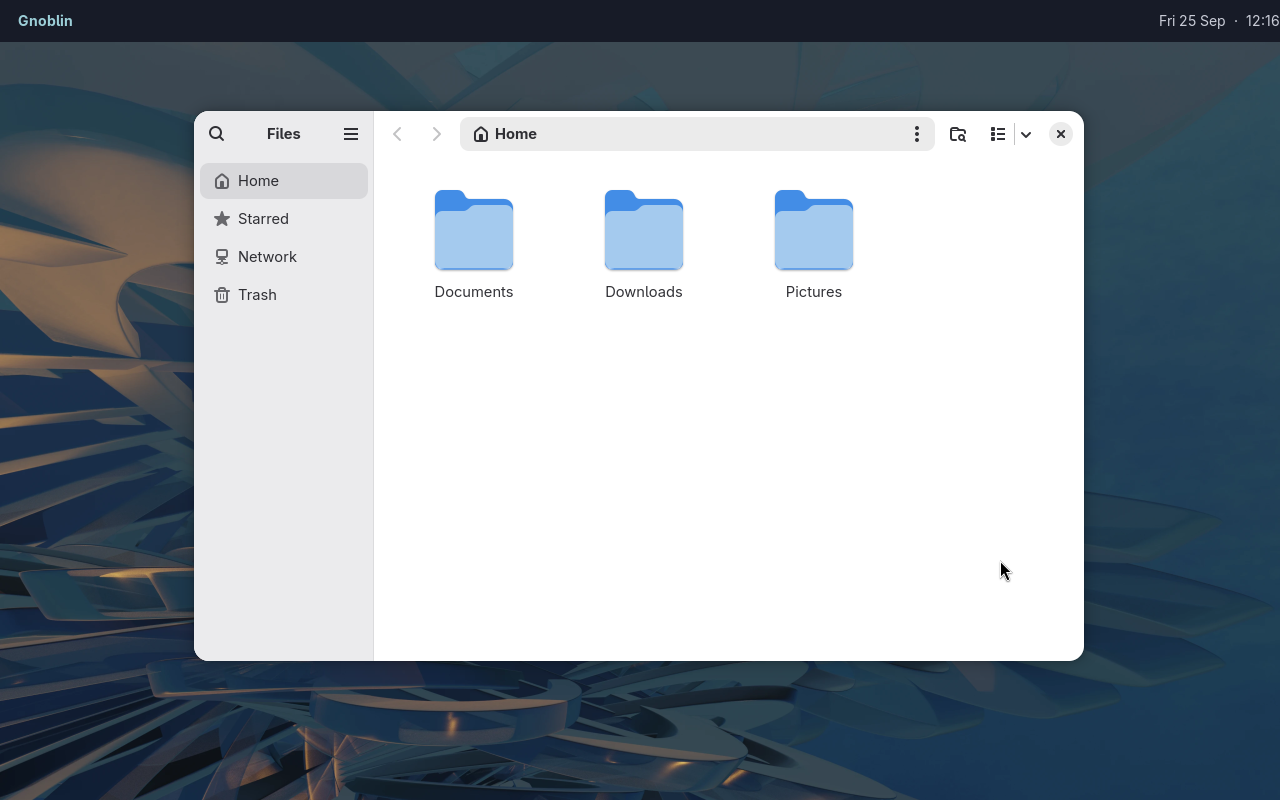
A stock GNOME app running with Waybar and Mako as separate clients.
Quickshell
Quickshell can host custom layer-shell surfaces. This small PanelWindow example runs beside Firefox:
import Quickshell
import QtQuick

PanelWindow {
    anchors { top: true; left: true; right: true }
    implicitHeight: 42
    Text {
        anchors.centerIn: parent
        text: Qt.formatDateTime(new Date(), "ddd, dd MMM  ·  HH:mm")
    }
}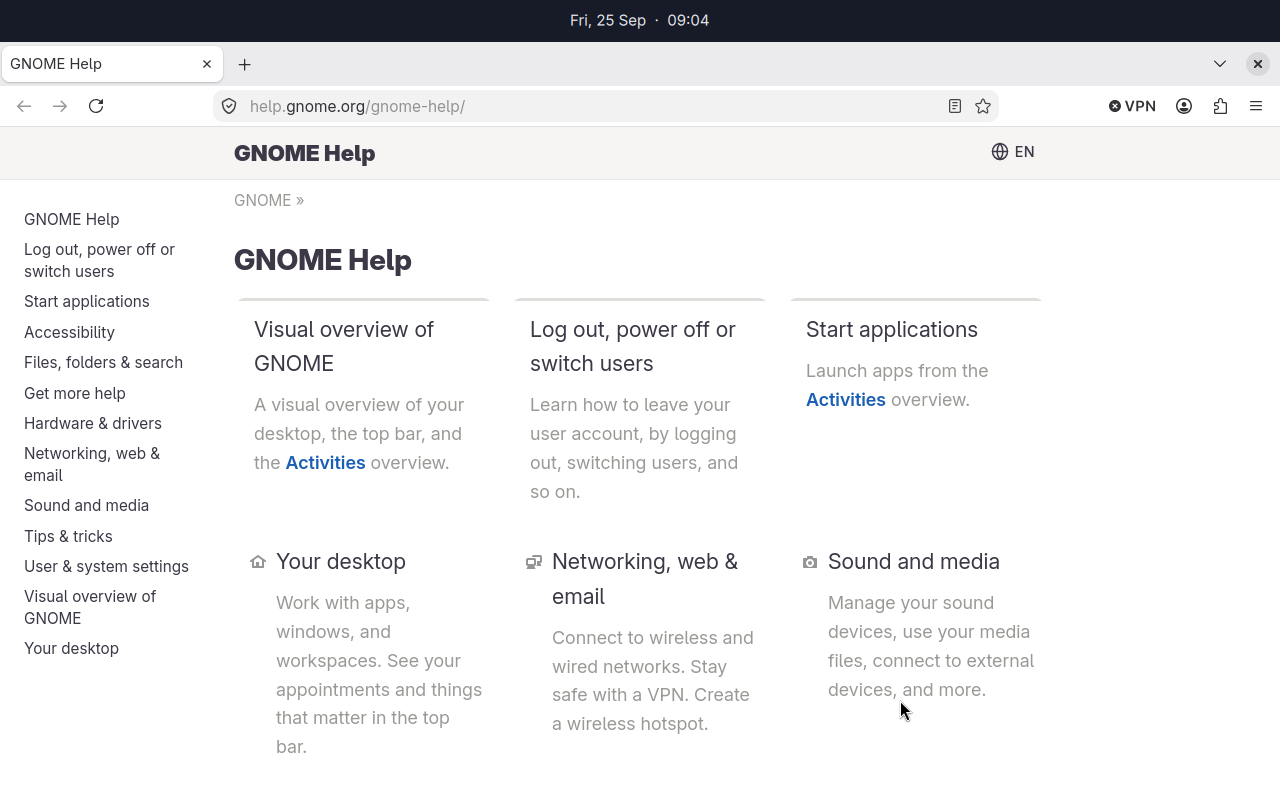
The panel is a separate Quickshell process using Gnoblin's layer-shell support.
Bingux
Bingux provides the desktop controls, notifications, search and window switcher.
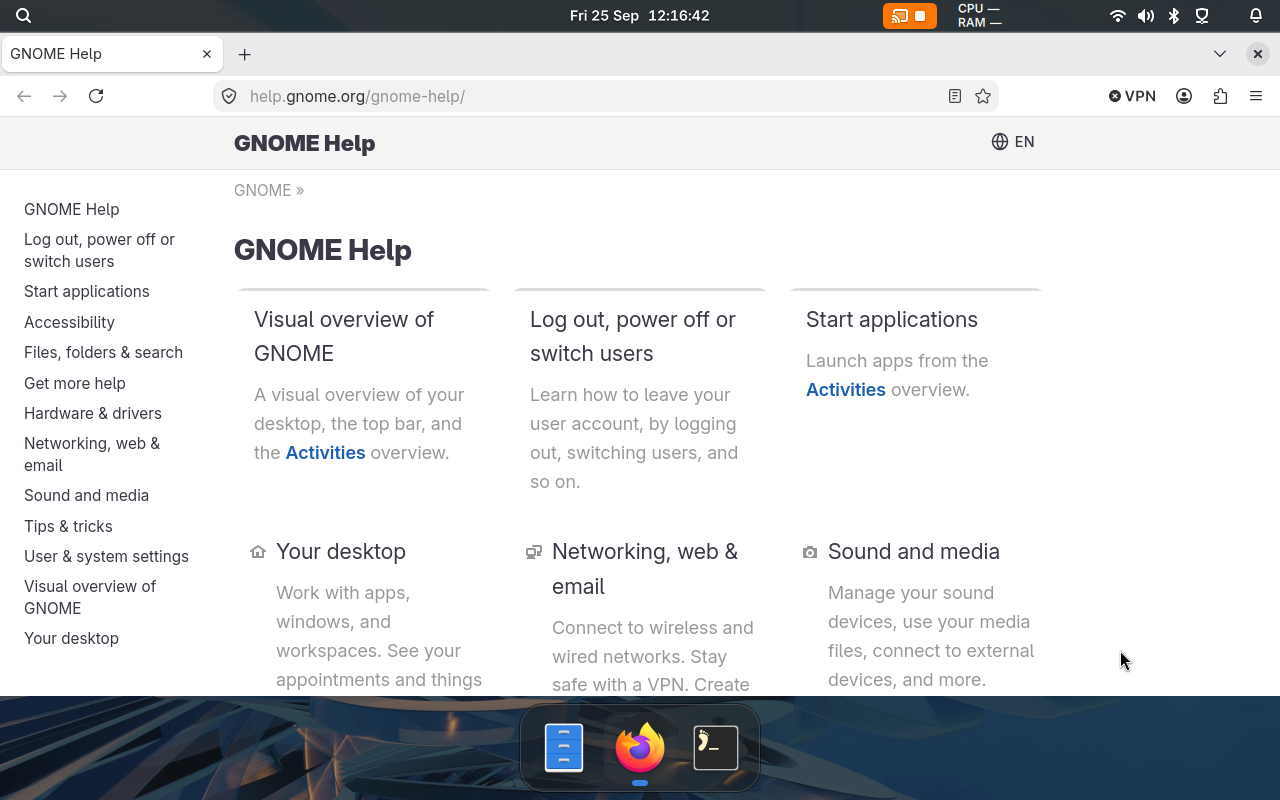
Bingux is one separate shell project that uses Gnoblin. Files, Firefox and Foot are pinned in its dock.

Files is a stock GNOME app; Bingux supplies the shell and dock.
Install the dependencies in the Bingux installation guide, then build and install it for your user:
git clone https://github.com/kierandrewett/bingux.git
cd bingux
make install-user
The installer builds the shell, enables its services and adds the Gnoblin configuration include. Keep those includes when editing init.lua.
If you installed a Bingux package instead, enable its services:
systemctl --user daemon-reload
systemctl --user enable --now bingux.target
Do not also add Bingux to Gnoblin's autostart list.
What Gnoblin still provides
Gnoblin keeps window management, locking and desktop services. GNOME extensions, the Overview and native screenshot/OSD popups are not available in this session.
Native notifications and the keyboard-layout popup are optional. See session settings.
If the shell does not appear
Right-click the desktop and choose Open Terminal. If no layer surface appears for eight seconds, Gnoblin also shows a recovery panel.
For Bingux, inspect its service:
systemctl --user status bingux.service
journalctl --user -b -u bingux.service
See troubleshooting. To write your own shell, start with the compositor bridge.